Many new users are still confused about how to turn off their Vivo V60 5G. While it may seem simple, the steps can vary depending on the smartphone model. In this article, ajakteman.com will share a complete guide, from how to power off normally, reset the power button function, and force a shutdown or restart if the device freezes. This guide is written in simple language to make it easy for everyone to understand.
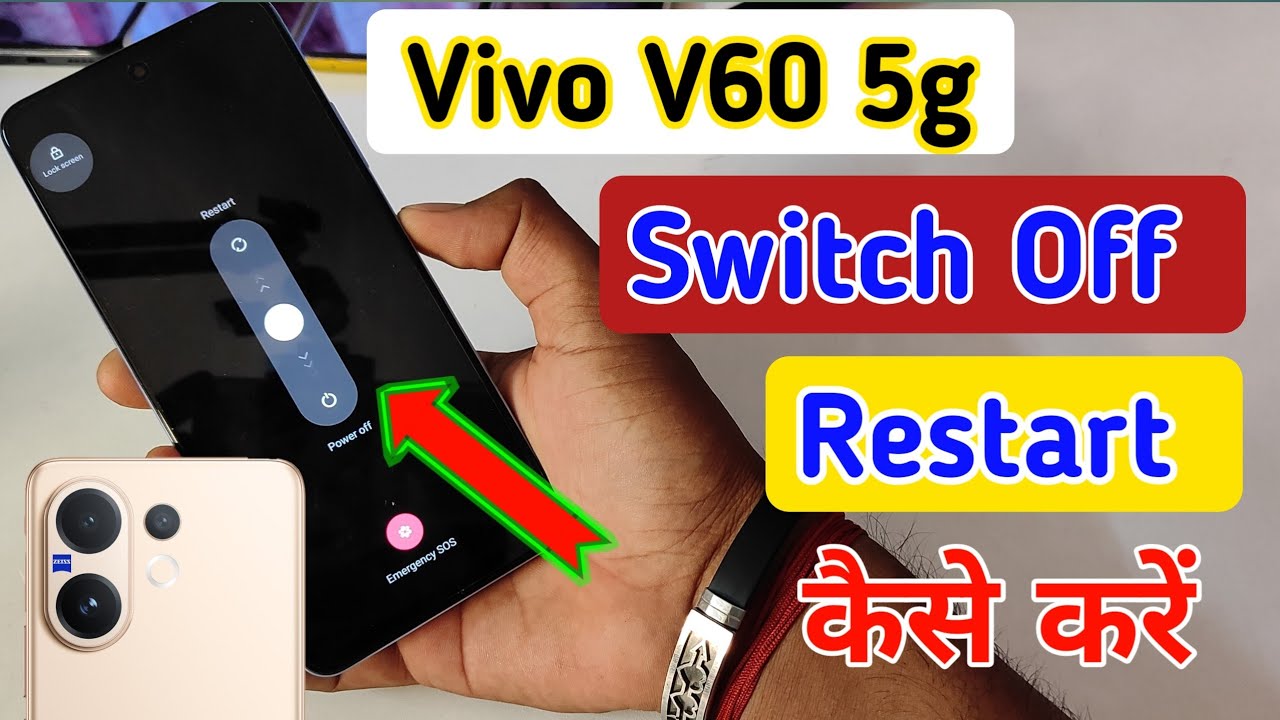
Why Do You Need to Know How to Turn Off Your Cell Phone Correctly?
Turning off your phone isn't just about pressing the power button. This action helps maintain device performance, restart the system if there's a bug, and conserve battery life when the phone isn't in use. Furthermore, on the Vivo V60 5G, the power button is sometimes configured to launch Google Assistant or Gemini AI, so users need to know how to adjust the settings to ensure the button functions properly.
Method 1: Using the Power and Volume Button Combination
The first and most common method is to use a combination of physical buttons. Here are the steps:
Press and hold the Power and Volume Up buttons simultaneously.
Wait a few seconds until the Power Off option appears on the screen.
Select the Power off option , then wait until the device completely shuts down.
This method is usually the quickest because it doesn't require going into the settings menu. However, if your power button is set to summon Google Assistant, this method may not immediately bring up the power menu.
Method 2: Change Vivo V60 5G Power Button Settings
If your phone displays Google Assistant when you press the power button, you'll need to change the settings to get the button to work again, bringing up the power menu. Here's how:
Open the Settings Menu
From the home screen, go to the Settings app .Go to Shortcuts and Accessibility Menu
Scroll down and select Shortcuts and Accessibility .Change Power Button Function
Select the Press and Hold Power Button option .
Change the setting from Launch Google Assistant to Show Power & Emergency Menu .
Turn off your phone
. Once setup is complete, press and hold the power button. The Power Off option will appear. Select it and wait for the device to turn off.
This method is important to know, because many Vivo V60 5G users were initially confused when the power button did not work as usual.
Method 3: Force Shutdown or Restart When the Vivo V60 5G Hangs
Sometimes, your phone may freeze or become completely unresponsive. If this happens, the usual method of turning it off won't work. The solution is to force it to shut down or restart it using the following steps:
Press and hold the Power and Volume Up buttons simultaneously.
Hold for a few seconds until the screen turns off.
Wait until the Vivo logo reappears, indicating the device has restarted.
This method not only shuts down but also force-restarts your phone. It's especially useful when your device is frozen or unresponsive.
Additional Tips When Turning Off the Vivo V60 5G
In addition to the main steps above, there are some tips that can help:
Save your work first – Make sure you have closed the application or saved the document before turning off your phone to avoid losing data.
Restart regularly – Restart at least 1–2 times a week to keep the system fresh and performance stable.
Check for software updates – Sometimes problems with the power button or shutdown option can be fixed with a system update.
In conclusion...
Turning off the Vivo V60 5G is actually quite easy if you know how. You can use a combination of the power and volume buttons, reset the power button function in the settings menu, or even perform a force restart when the device freezes. By understanding these various methods, you'll be better prepared for any situation when using your phone.
So, the next time your Vivo V60 5G is unresponsive or the power button isn't working properly, don't panic. Follow the steps above, and your device can be safely turned off or restarted.